
RECTANG
Draw a rectangle from two opposite corners.
- Type
- RECTANG or REC or RECTANGLE
- On the ribbon
- Home › Draw › Rectangle
- Since
- Musa CAD 0.1.0
What it asks first
Command: RECTANGSpecify first corner point or [Chamfer/Elevation/Fillet/Thickness/Width]:Read from Musa CAD 0.8.0 itself (musacad --dump-wiki-data), so these facts always match the release this wiki is built for (0.8.0).
RECTANG draws a rectangle from two opposite corners. The rectangle is one closed polyline, so you can select, offset or measure it as a single object.
How it works
Section titled “How it works”Type REC and press Enter. Click the first corner, then the opposite corner. To get an exact size, type the second corner as a point relative to the first.
Command: RECSpecify first corner point or [Chamfer/Elevation/Fillet/Thickness/Width]: 0,0Specify other corner point or [Area/Dimensions/Rotation]: @50,30Rectangle created.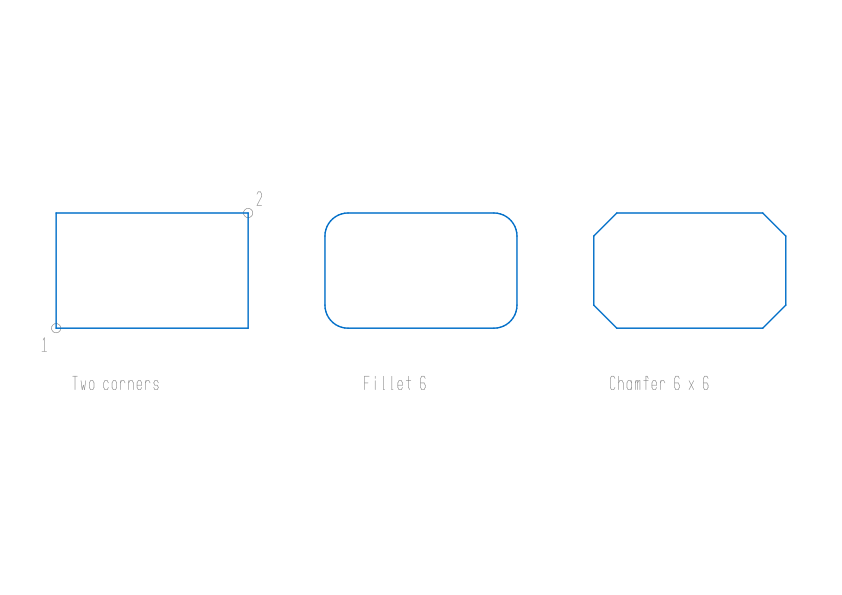
With Dynamic Input on, boxes for the length and the width appear beside the rectangle as you move the cursor.
Exact size, area and rotation
Section titled “Exact size, area and rotation”At the second prompt you can fix the size first, and click afterwards:
Command: RECSpecify first corner point or [Chamfer/Elevation/Fillet/Thickness/Width]: (click the first corner)Specify other corner point or [Area/Dimensions/Rotation]: DSpecify length for rectangles <10.0000>: 50Specify width for rectangles <10.0000>: 30Specify other corner point or [Area/Dimensions/Rotation]: (click on the side you want)Rectangle created.Once the size is fixed, your last click only chooses which way the rectangle goes from the first corner: up or down, left or right.
Options
Section titled “Options”| Option | What it does |
|---|---|
Chamfer (C) | First prompt. Bevels all four corners. Musa CAD asks Specify first chamfer distance for rectangles <0.0000>: and then the second distance, which defaults to the first. |
Elevation (E) | First prompt. A height above the drawing plane: Specify the elevation for rectangles <0.0000>:. It is kept and saved with the drawing, but Musa CAD draws in 2D, so you see no change. |
Fillet (F) | First prompt. Rounds all four corners: Specify fillet radius for rectangles <0.0000>:. |
Thickness (T) | First prompt. A 3D thickness: Specify thickness for rectangles <0.0000>:. Like Elevation, it is kept and saved but changes nothing on screen. |
Width (W) | First prompt. How wide the rectangle’s lines are drawn: Specify line width for rectangles <0.0000>:. |
Area (A) | Second prompt. Give the area (Enter area of rectangle in current units <100.0000>:), then answer Calculate rectangle dimensions based on [Length/Width] <Length>: and give that side. Musa CAD works out the other side. |
Dimensions (D) | Second prompt. Give the length (along X) and the width (along Y), as shown above. |
Rotation (R) | Second prompt. Turns the rectangle about the first corner: Specify rotation angle or [Pick points] <0>:. Type an angle in degrees, or click a point to aim it. Pick points (P) asks for two points and uses the angle of the line between them. |
Settings that stay
Section titled “Settings that stay”RECTANG keeps these until you close Musa CAD:
- The chamfer distances or the fillet radius. Setting one clears the other, and a value of 0 gives square corners again.
- The line width, elevation and thickness.
- The rotation. Later rectangles are turned by the same angle until you set Rotation back to 0.
- The last length, width and area, offered as the defaults.
When a chamfer, elevation, fillet, thickness or width is set, RECTANG says so as it starts, for example Current rectangle modes: Fillet=6.0000.
Good to know
Section titled “Good to know”- If the fillet radius or chamfer is too big for the rectangle, Musa CAD draws square corners and says
Fillet radius too large for this rectangle: drawn with square corners.(or the same for the chamfer). - Area means the area of the finished shape, after the corners are rounded or cut.
- At a length, width or area prompt, anything that is not a positive number takes you back to
Specify other corner point or [Area/Dimensions/Rotation]:without changing anything. - A negative chamfer, fillet or width is refused with
Enter a distance of zero or more.,Enter a radius of zero or more.orEnter a width of zero or more. - To work on the four sides as separate lines, use EXPLODE.
- Esc cancels the command. Nothing is drawn.
Compared with AutoCAD
Section titled “Compared with AutoCAD”RECTANG uses AutoCAD’s prompts and options. As in AutoCAD, the last chamfer distances or fillet radius stay as the default for later rectangles, and setting one clears the other. Elevation and Thickness are stored, but have no visible effect, because Musa CAD is 2D.