
CHAMFER
Bevel corners between two intersecting lines.
- Type
- CHAMFER or CHA
- On the ribbon
- Home › Modify › Fillet › Chamfer
- Since
- Musa CAD 0.1.0
What it asks first
Command: CHAMFER(TRIM mode) Current chamfer Dist1 = 0.0000, Dist2 = 0.0000Select first line or [Undo/Polyline/Distance/Angle/Trim/mEthod/Multiple]:Read from Musa CAD 0.8.0 itself (musacad --dump-wiki-data), so these facts always match the release this wiki is built for (0.8.0).
CHAMFER cuts a corner off with a short straight line, called a bevel. You say how far back from the corner to cut on each line, and Musa CAD trims both lines and draws the bevel between them.
How it works
Section titled “How it works”Type CHA and press Enter. Musa CAD shows the mode and the current distances. Set new distances with Distance if you need them. Then pick the first line and the second. Pick each one on the part you want to keep. The corner is bevelled and the command ends.
Command: CHA(TRIM mode) Current chamfer Dist1 = 0.0000, Dist2 = 0.0000Select first line or [Undo/Polyline/Distance/Angle/Trim/mEthod/Multiple]: DSpecify first chamfer distance <0.0000>: 16Specify second chamfer distance <16.0000>: 10Select first line or [Undo/Polyline/Distance/Angle/Trim/mEthod/Multiple]: (pick the first line)Select second line or shift-select to apply corner or [Distance/Angle/Method]: (pick the second line)Chamfered.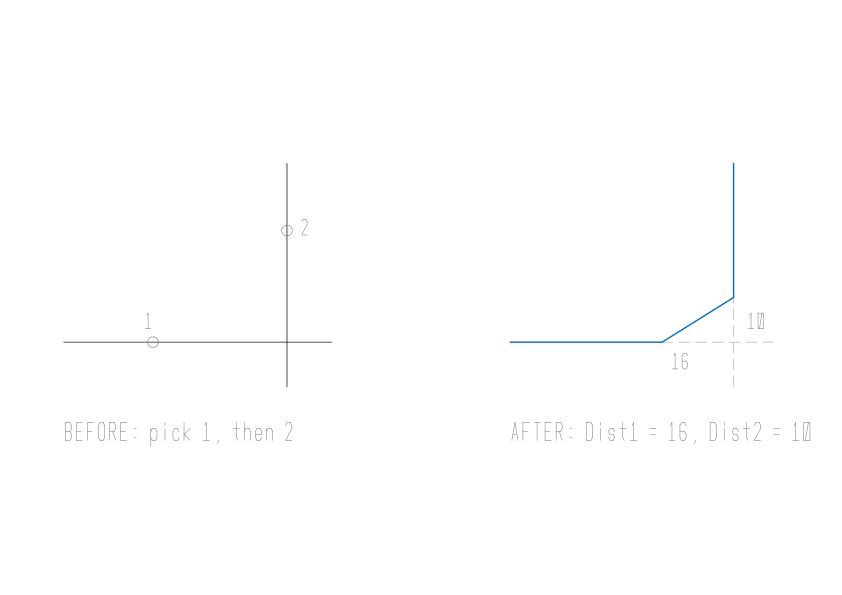
The first distance is measured along the first line you pick, the second along the second line, both from the point where the lines meet or would meet.
While you move over the second line, Musa CAD shows the result a click would make. Hold Shift as you pick the second line to make a clean, sharp corner with no bevel this once.
Options
Section titled “Options”| Option | What it does |
|---|---|
Undo (U) | Takes back the last chamfer made in this run. Useful with Multiple. |
Polyline (P) | Bevels every corner of a 2D polyline at once. Asks Select 2D polyline or [Distance/Angle/mEthod]:, then reports how many corners it cut, such as 4 lines were chamfered. |
Distance (D) | Asks Specify first chamfer distance <0.0000>:, then asks for the second distance, offering the first one as its default. Switches to the Distance method. |
Angle (A) | Asks Specify chamfer length on the first line <0.0000>:, then Specify chamfer angle from the first line <0>:. Switches to the Angle method. |
Trim (T) | Asks Enter Trim mode option [Trim/No trim] <Trim>:. Trim cuts the lines back to the bevel. No trim leaves them as they are and only adds the bevel. |
mEthod (E) | Asks Enter trim method [Distance/Angle] <Distance>: and switches between the two methods without changing any values. At the second-line prompt this option is Method (M). |
Multiple (M) | Keeps asking for pairs, so you can bevel many corners. Press Enter to stop. Each corner is its own undo step. |
| Enter at Select first line | Ends the command. |
Distance and Angle methods
Section titled “Distance and Angle methods”CHAMFER can size the bevel in two ways.
- Distance: two distances, one along each line. Equal distances give a 45 degree bevel on a square corner.
- Angle: a length along the first line, and an angle measured from the first line.
The first line of each run shows the method in use. With the Angle method it reads, for example, (TRIM mode) Current chamfer Length = 10.0000, Angle = 30.
Settings CHAMFER remembers
Section titled “Settings CHAMFER remembers”The distances, the length and angle, the method and the Trim mode are kept for the next time, for as long as Musa CAD stays open.
- The two distances are CHAMFERA and CHAMFERB.
- The length and angle are CHAMFERC and CHAMFERD.
- The Trim mode is TRIMMODE, which FILLET uses too. Changing it in one changes it in the other.
Good to know
Section titled “Good to know”- CHAMFER works on two lines, on two segments of one polyline that meet, and on a whole polyline with Polyline. Anything else says
Chamfer: pick two lines, or two adjacent edges of one polyline. - Parallel lines are refused with
Chamfer: the two lines are parallel. - With both distances 0 and Trim on, the lines are trimmed or extended to meet in a sharp corner, the same as a Shift pick. With No trim, there is nothing to add:
Chamfer: nothing to add with zero distances in No trim mode. - On a polyline corner, distances longer than the segments are refused with
Chamfer: distances too large for that corner.With Polyline, corners that are too short are skipped and counted at the end of the message. - The trimmed lines keep their layer, colour and linetype. The bevel takes the lines’ properties when both are on the same layer; otherwise it goes on the current layer.
- At the Trim mode prompt, Enter chooses Trim, even when the default shown is No trim. Type
Nto keep No trim. - Undo takes back only the most recent chamfer. After that it says
Nothing to undo.
Compared with AutoCAD
Section titled “Compared with AutoCAD”CHAMFER uses AutoCAD’s prompts, its Distance and Angle methods, and offers the first distance as the default for the second, as AutoCAD does. In Musa CAD it works on lines and polylines.
- Round a corner with an arc instead with FILLET.
- Draw a rectangle with bevelled corners in one go with RECTANG.
- See all the editing commands together in Modifying objects.