
LENGTHEN
Change the length of a line or arc.
- Type
- LENGTHEN or LEN
- On the ribbon
- Home › Modify (slide-out) › Lengthen
- Since
- Musa CAD 0.4.0
What it asks first
Command: LENGTHENSelect an object to measure or [DElta/Percent/Total/DYnamic] <Total>:Read from Musa CAD 0.8.0 itself (musacad --dump-wiki-data), so these facts always match the release this wiki is built for (0.8.0).
LENGTHEN makes an object longer or shorter by an exact amount, without needing another object to reach. It can also tell you how long an object is.
How it works
Section titled “How it works”Type LEN and press Enter. First choose how to change the length: DElta, Percent, Total or DYnamic. Then give the amount. Then click each object near the end that should move. The other end stays where it is. Press Enter when you are done.
If you click an object at the first prompt instead, Musa CAD tells you its length and asks again.
Command: LENSelect an object to measure or [DElta/Percent/Total/DYnamic] <Total>: (pick the line)Current length: 60.0000Select an object to measure or [DElta/Percent/Total/DYnamic] <Total>: DEEnter delta length or [Angle] <0.0000>: 20Select an object to change: (pick near the right end)Length changed from 60.0000 to 80.0000.Select an object to change or [Undo]: Enter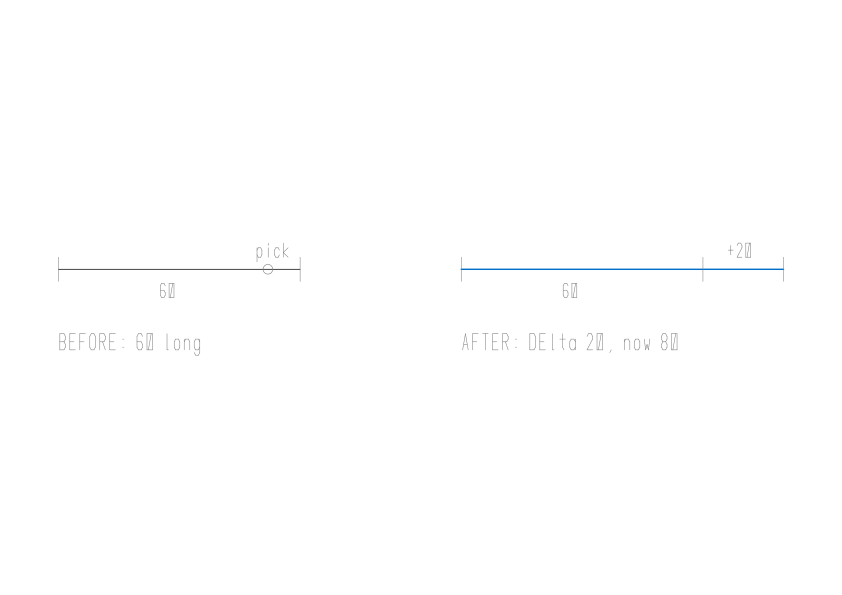
Options
Section titled “Options”| Option | What it does |
|---|---|
DElta (DE) | Adds a length: Enter delta length or [Angle] <0.0000>:. A negative number makes the object shorter. |
Percent (P) | Sets the new length as a percentage of the old one: Enter percentage length <100.0000>:. 50 halves the object, 200 doubles it. |
Total (T) | Sets the whole length: Specify total length or [Angle] <1.0000>:. |
DYnamic (DY) | Pick an object, then click where its end should go: Specify new end point:. A line keeps its direction, and an arc keeps its circle. |
Angle (A) | For arcs, after DElta or Total. Changes the arc’s included angle instead of its length: Enter delta angle <0>: or Specify total angle <0>:, in degrees. |
Undo (U) | Puts back the last change. It appears after your first change. |
| Enter at the first prompt | Uses the method shown in <>. |
| Enter at Select an object to change | Ends the command. |
Good to know
Section titled “Good to know”- Lines, arcs, open polylines, elliptical arcs and splines can be changed. Anything else says
Lengthen: only lines, arcs, polylines, elliptical arcs and splines have an end to move.A construction line saysLengthen: a construction line is already infinite. - On an arc, a length is measured along the curve, in drawing units. Measuring an arc also shows its angle, for example
Current length: 31.4159, included angle: 90. - On a polyline, only the end segment you click near changes, straight on or round its arc. Total and Percent still count the whole polyline.
- A spline is made longer straight on from its end, and shorter along its curve.
- A change that would leave nothing is refused with
Lengthen: that would leave nothing of the object. - Angle is only for arcs. On a line it says
Lengthen: Angle is for arcs; a line has a length. - A closed polyline has no end to move:
Lengthen: a closed polyline has no end to move. - Percent and Total need a number greater than 0, or Musa CAD says
Enter a value greater than zero. - The method and the amounts are kept for the next time, for as long as Musa CAD stays open.
- Each change is its own undo step, both inside LENGTHEN and with U afterwards.
Compared with AutoCAD
Section titled “Compared with AutoCAD”LENGTHEN follows AutoCAD’s order: choose the method, then the amount, then the objects, and the end nearer your pick is the one that moves. As in AutoCAD, a spline is lengthened straight on along the direction its end leaves by.