
EXTEND
Extend objects to meet the edges of other objects.
- Type
- EXTEND or EX
- On the ribbon
- Home › Modify › Trim › Extend
- Since
- Musa CAD 0.1.0
What it asks first
Command: EXTENDCurrent settings: Projection=UCS, Edge=None, Mode=QuickSelect object to extend or shift-select to trim or [Boundary edges/Crossing/mOde/Project]:Read from Musa CAD 0.8.0 itself (musacad --dump-wiki-data), so these facts always match the release this wiki is built for (0.8.0).
EXTEND makes an object longer so that it reaches the next object in its way. Click near the end you want to grow, and Musa CAD carries it on until it meets an edge.
How it works
Section titled “How it works”Type EX and press Enter. Musa CAD shows the current settings, then waits for you to click what to extend. Click near the end that should grow. The part that will be added is shown under the cursor before you click. Press Enter when you are done.
Command: EXCurrent settings: Projection=UCS, Edge=None, Mode=QuickSelect object to extend or shift-select to trim or [Boundary edges/Crossing/mOde/Project]: (click near an end)Extended.Select object to extend or shift-select to trim or [Boundary edges/Crossing/mOde/Project/Undo]: Enter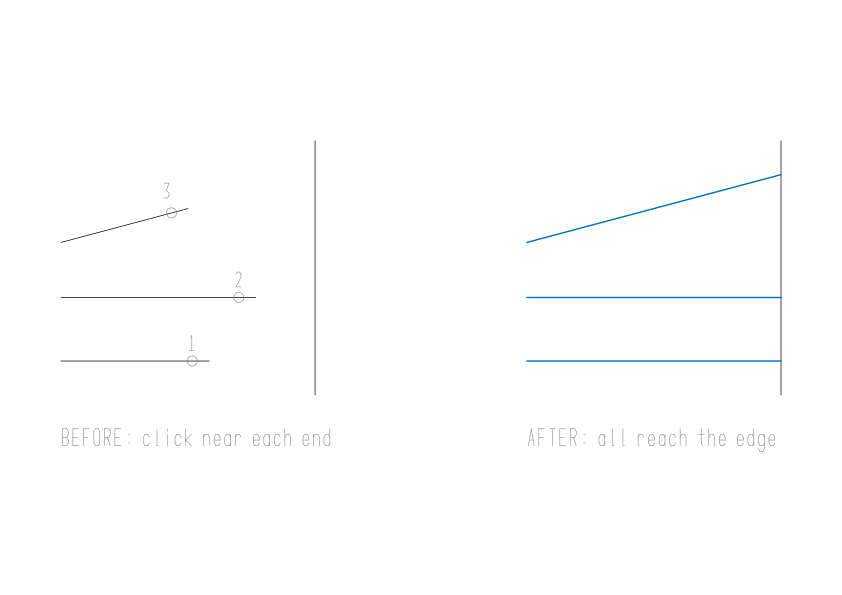
To extend many objects at once, drag across them with the mouse button held down. Everything the path crosses is extended, at the end nearer the crossing. Musa CAD then says how many, for example Extended 3 objects., or Extend: nothing along the path reaches a boundary. In Quick mode you can also click on empty space and then a second point; in Standard mode that click starts a crossing window instead.
Hold Shift while you click or drag to trim instead, as TRIM does.
Quick and Standard mode
Section titled “Quick and Standard mode”EXTEND has the same two modes as TRIM. Musa CAD starts in Quick mode.
- Quick: every object in the drawing is a boundary. You only click what to extend.
- Standard: you first choose the boundary edges, then click what to extend. Only the chosen edges stop an object.
Command: EXCurrent settings: Projection=UCS, Edge=None, Mode=StandardSelect boundary edges ...Select objects or <select all>: (pick the edges) EnterSelect object to extend or shift-select to trim or [Boundary edges/Fence/Crossing/mOde/Project/Edge]:In Standard mode, objects you selected before starting EXTEND become the boundary edges, and pressing Enter at Select objects makes every object an edge. Switch modes with the mOde option, which asks Enter an extend mode option [Quick/Standard] <Quick>:. The mode is kept for next time. It is the TRIMEXTENDMODE setting, so it changes TRIM’s mode too.
Options
Section titled “Options”| Option | What it does |
|---|---|
Boundary edges (B) | Choose which objects to extend to, instead of all of them. |
Fence (F) | Standard mode. Click points to draw a line; everything it crosses is extended. Press Enter to finish. |
Crossing (C) | Click two corners. Everything the window crosses is extended. |
mOde (O) | Switch between Quick and Standard. |
Project (P) | None, Ucs or View. Kept for AutoCAD habits; in a 2D drawing it changes nothing. |
Edge (E) | Standard mode. Extend lets an object grow to where an edge would reach if it went on: a line along its whole length, an arc round its full circle. No extend uses only the edges as drawn. |
Undo (U) | Takes back what the last click or path extended. It appears after your first extend. |
Good to know
Section titled “Good to know”- Lines, arcs, elliptical arcs, splines and open polylines can be extended. Anything else says
Extend: only lines, arcs, elliptical arcs, splines and open polylines can be extended. - A line grows straight on. An arc grows round its own circle. A polyline grows along its end segment, round the circle if that segment is an arc. A spline goes on straight in the direction its end is pointing.
Extend: no boundary ahead of that end.means nothing lies in the way of the end you clicked. Check that you clicked near the end you meant. In Standard mode, check the edges you chose, or turn on Edge Extend.- A closed polyline, a whole ellipse and a closed spline have no free end, and are refused with a message that says so.
- EXTEND never deletes anything. An object with nothing ahead of it stays as it is. Only when you hold Shift does it trim, and then TRIM’s rules apply.
- The extended object keeps its layer, colour and linetype.
- Each click, drag or fence is a separate undo step, both inside EXTEND and with U afterwards.
Compared with AutoCAD
Section titled “Compared with AutoCAD”EXTEND follows AutoCAD’s newer behaviour: Quick mode by default, the highlighted preview, and Standard mode with the classic boundary edges. As in AutoCAD, a spline is extended straight on along the direction its end leaves by. Projection is accepted but has no effect, because Musa CAD is 2D.