
COPY
Duplicate selected objects at a specified offset.
- Type
- COPY or CO or CP
- On the ribbon
- Home › Modify › Copy
- Since
- Musa CAD 0.1.0
What it asks first
Command: COPYSelect objects:Read from Musa CAD 0.8.0 itself (musacad --dump-wiki-data), so these facts always match the release this wiki is built for (0.8.0).
COPY makes copies of objects and leaves the originals where they are. You can place many copies in one go, each one measured from the same base point.
How it works
Section titled “How it works”Type CO (or CP) and press Enter. Select the objects and press Enter. Click a base point, then click or type where each copy goes. Press Enter when you have placed enough.
Command: COSelect objects: (click left of the circles, then right of them)2 found.Select objects: EnterCurrent settings: Copy mode = MultipleSpecify base point or [Displacement/mOde] <Displacement>: (click the centre)Specify second point or [Array] <use first point as displacement>: @40,0Copy placed.Specify second point or [Array/Exit/Undo] <Exit>: @80,0Copy placed.Specify second point or [Array/Exit/Undo] <Exit>: Enter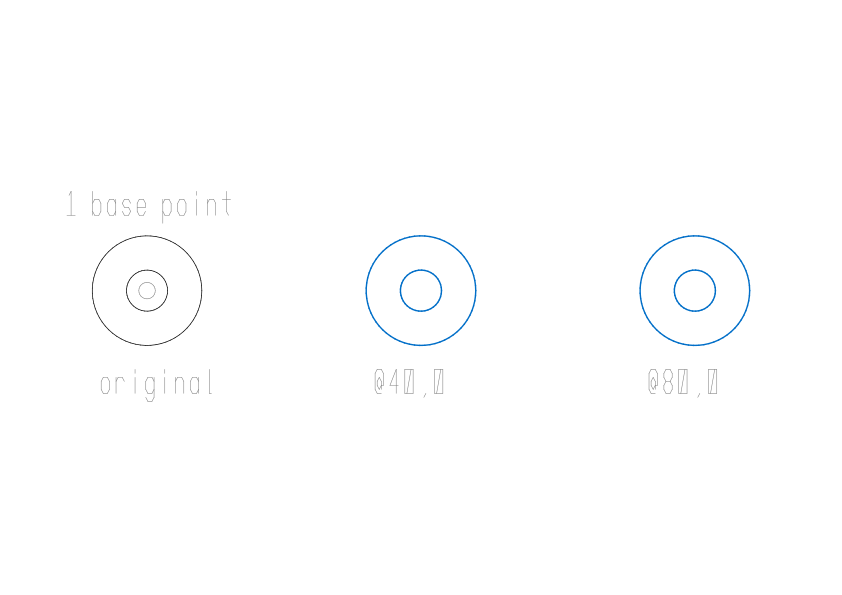
Every second point is measured from the base point, not from the last copy. So @40,0 and then @80,0 give copies 40 and 80 to the right. A copy follows the cursor before you click, so you can see where it will go.
Options
Section titled “Options”| Option | What it does |
|---|---|
Displacement (D) | Asks Specify displacement <0.0000, 0.0000, 0.0000>:. Type how far away the copy goes as X,Y, such as 40,0. COPY places that one copy and ends. |
mOde (O) | Asks Enter a copy mode option [Single/Multiple] <Multiple>:. Multiple keeps asking for more copies. Single places one copy and ends. |
Array (A) | Places a row of copies at even steps. See below. |
Undo (U) | Takes back the last copy. It appears after the first copy. |
Exit (E) | Ends the command. Enter does the same once a copy is placed. |
| Enter at Specify base point | Same as Displacement. |
| Enter at the first Specify second point | Uses the base point’s coordinates as the distance. A base point of 40,10 places the copy 40 right and 10 up. |
A row of copies with Array
Section titled “A row of copies with Array”Type A at Specify second point to place several copies in a line:
Specify second point or [Array] <use first point as displacement>: AEnter number of items to array: 4Specify second point or [Fit]: @25,03 copies placed.- The number counts the original, so
4makes three copies. It must be 2 or more, or Musa CAD saysRequires an integer value of 2 or more. - The point you give is the step from one item to the next: here, a copy every 25 units.
- Type
F(Fit) first, and the point is where the last copy goes instead. The copies are spread evenly up to it. TypeAto switch back.
Selecting objects
Section titled “Selecting objects”At Select objects: you build up the set of objects to copy. Each pick or window adds to it, and Musa CAD says how many it found, such as 1 found. or 2 found, 5 total.
- Click an object to add it.
- Click an empty spot, then click again to draw a box. Going from left to right makes a window: it takes only objects that lie completely inside. Going from right to left makes a crossing window: it also takes objects that only touch it.
- Press and drag to draw a free shape, called a lasso. Start dragging to the right for a window, to the left for a crossing.
- Hold Shift and click a selected object to take it out again.
- Press Enter, or right-click, when the set is complete. If nothing is selected, COPY ends.
If objects are already selected when you start COPY, it uses them and goes straight to the base point. You can also type a keyword at Select objects:, such as ALL for everything or P for the objects the last edit worked on. SELECT lists them all.
Good to know
Section titled “Good to know”- The copy mode is kept until you close Musa CAD. The line
Current settings: Copy mode = Multipletells you which mode is on. - COPY remembers the distance of the last copy and offers it as the default at Displacement.
- Each copy is its own undo step, both with Undo inside COPY and with U afterwards. After an Array, each copy in the row is a step of its own too, so Undo takes them back one at a time.
- Esc ends COPY. The copies you already placed stay.
- A copy is drawn on top of other objects, like a newly drawn one.
- Objects on layers that are off, frozen or locked cannot be selected.
Compared with AutoCAD
Section titled “Compared with AutoCAD”COPY uses the same prompts and options AutoCAD users know: Displacement, mOde with Single and Multiple, and Array with Fit.