
MIRROR
Create a mirror-image copy of objects across an axis.
- Type
- MIRROR or MI
- On the ribbon
- Home › Modify › Mirror
- Since
- Musa CAD 0.1.0
What it asks first
Command: MIRRORSelect objects:Read from Musa CAD 0.8.0 itself (musacad --dump-wiki-data), so these facts always match the release this wiki is built for (0.8.0).
MIRROR makes a mirror image of objects, flipped across a line you choose. It is the quick way to draw a symmetrical part: draw one half, then mirror it.
How it works
Section titled “How it works”Type MI and press Enter. Select the objects and press Enter. Click two points on the mirror line. Then say whether to erase the originals; press Enter to keep them.
Command: MISelect objects: (click an empty spot left of the bracket, then click right of it)2 found.Select objects: EnterSpecify first point of mirror line: (click point 1)Specify second point of mirror line: (click point 2)Erase source objects? [Yes/No] <No>: EnterMirrored.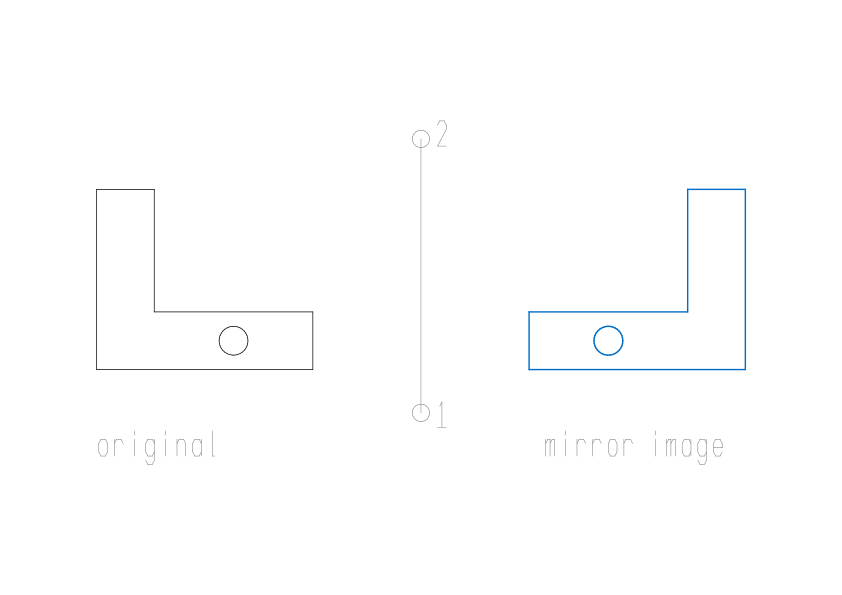
The mirror line is not drawn; it only says where the flip happens. After the first point, the mirror image follows the cursor, so you can see it before you click the second point. Turn on Ortho to get an exactly vertical or horizontal line.
Options
Section titled “Options”| Option | What it does |
|---|---|
Yes (Y) | Erases the originals, so only the mirror image is left. Musa CAD says Mirrored (source erased). |
No (N) | Keeps the originals. Any other answer, or Enter, means No too. Musa CAD says Mirrored. |
Text in a mirror image
Section titled “Text in a mirror image”By default, mirrored text stays readable: it moves to its mirrored place, but it is not turned back to front. This is the MIRRTEXT setting, 0 by default. Set it to 1 and text is flipped like everything else.
Selecting objects
Section titled “Selecting objects”At Select objects: you build up the set of objects to mirror. Each pick or window adds to it, and Musa CAD says how many it found, such as 1 found. or 2 found, 5 total.
- Click an object to add it.
- Click an empty spot, then click again to draw a box. Going from left to right makes a window: it takes only objects that lie completely inside. Going from right to left makes a crossing window: it also takes objects that only touch it.
- Press and drag to draw a free shape, called a lasso. Start dragging to the right for a window, to the left for a crossing.
- Hold Shift and click a selected object to take it out again.
- Press Enter, or right-click, when the set is complete. If nothing is selected, MIRROR ends.
If objects are already selected when you start MIRROR, it uses them and goes straight to the mirror line. You can also type a keyword at Select objects:, such as ALL for everything or P for the objects the last edit worked on. SELECT lists them all.
Good to know
Section titled “Good to know”- When you keep the originals, the mirror image is drawn on top of other objects, like newly drawn ones.
- With Yes, the originals are replaced, and associative dimensions and hatches attached to them follow to the mirrored place.
- One MIRROR is one undo step. Esc before the last answer cancels, and nothing is made.
- Objects on layers that are off, frozen or locked cannot be selected.
Compared with AutoCAD
Section titled “Compared with AutoCAD”MIRROR asks the same questions as in AutoCAD. Mirrored text stays readable by default, as with AutoCAD’s default MIRRTEXT of 0.