
ARRAY
Create a rectangular, path or polar pattern of copies.
- Type
- ARRAY or AR
- On the ribbon
- Not on the ribbon. Type it, or find it with the command search above the ribbon.
- Since
- Musa CAD 0.1.0
What it asks first
Command: ARRAYSelect objects:Read from Musa CAD 0.8.0 itself (musacad --dump-wiki-data), so these facts always match the release this wiki is built for (0.8.0).
ARRAY makes many copies of objects in a regular pattern. It has three types: Rectangular puts copies in rows and columns, Polar puts them around a centre, and Path spaces them along a line or curve.
How it works
Section titled “How it works”Type AR and press Enter. Select the objects and press Enter. Choose the type; Enter means Rectangular. Musa CAD draws the array straight away with default settings, as a preview. Answer the Select grip to edit array question by typing an option to change the array, and the preview follows each change. Press Enter to make the array.
Command: ARSelect objects: (pick the circle)1 found.Select objects: EnterEnter array type [Rectangular/PAth/POlar] <Rectangular>: EnterType = Rectangular Associative = NoSelect grip to edit array or [ASsociative/Base point/COUnt/Spacing/COLumns/Rows/Levels/eXit]<eXit>: EnterArray created: 11 copies.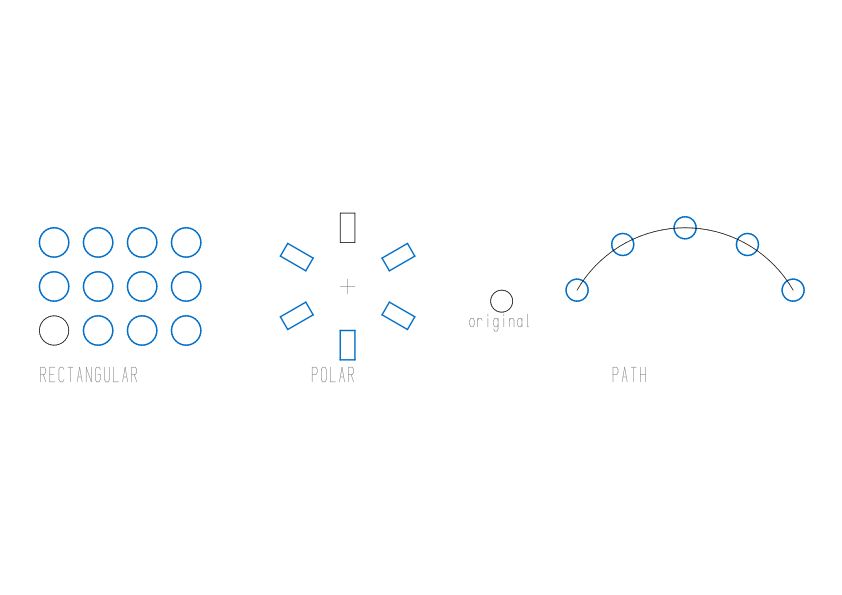
The original objects stay where they are. In rectangular and polar arrays they are the first item, so 4 columns and 3 rows make 11 copies. The copies are ordinary, separate objects.
You can also start each type directly, without the type question, with ARRAYRECT, ARRAYPOLAR or ARRAYPATH. They ask the same questions as the matching type here.
Options
Section titled “Options”These are the answers to the type question, and the options all three types share.
| Option | What it does |
|---|---|
Rectangular (R) | Rows and columns. Enter at the type question picks this. |
PAth (PA) | Copies along a path you pick. A plain P is refused with Ambiguous: enter PA for path or PO for polar. |
POlar (PO) | Copies around a centre point. |
ASsociative (AS) | Asks Create associative array [Yes/No] <No>:. Musa CAD always makes separate copies; answering Yes says Associative arrays are not made yet: the items are separate copies. |
Base point (B) | Asks for the point on the selected objects that the pattern is placed by. See Path arrays. Key point (K) asks you to click a point on the objects. |
Levels (L) | Asks for the number of levels and the distance between them. Levels stack copies upward in 3D, so a 2D drawing keeps one; a number above 1 says Levels stack the array in Z: a 2D drawing keeps one level. |
eXit (X) | Makes the array and ends the command. Enter does the same. |
Type at least the capital letters of an option, such as COU for COUnt. Anything Musa CAD does not recognise is answered with Pick an option, or Enter to make the array.
Rectangular arrays
Section titled “Rectangular arrays”The default is 4 columns and 3 rows. The space between them is one and a half times the size of what you selected: for a circle 8 across, 12 from one centre to the next.
Select grip to edit array or [ASsociative/Base point/COUnt/Spacing/COLumns/Rows/Levels/eXit]<eXit>: COUEnter the number of columns or [Expression] <4>: 5Enter the number of rows or [Expression] <3>: 2Select grip to edit array or [ASsociative/Base point/COUnt/Spacing/COLumns/Rows/Levels/eXit]<eXit>: SSpecify the distance between columns or [Unit cell] <12.0000>: 20Specify the distance between rows <12.0000>: 15Select grip to edit array or [ASsociative/Base point/COUnt/Spacing/COLumns/Rows/Levels/eXit]<eXit>: EnterArray created: 9 copies.| Option | What it does |
|---|---|
COUnt (COU) | Asks for the number of columns, then the number of rows. |
Spacing (S) | Asks for the distance between columns, then between rows. Unit cell (U) at the first question asks for two corners of a box instead: its width and height become the two distances. |
COLumns (COL) | Asks for the number of columns, then the distance between them. Total (T) lets you give the distance from the first column to the last instead. |
Rows (R) | Asks for the number of rows, the distance between them (or Total), and then an elevation between rows. The elevation is a 3D height, so it changes nothing in a 2D drawing. |
Columns run to the right and rows go up. Give a negative distance to build the array to the left or downward.
Polar arrays
Section titled “Polar arrays”A polar array asks for the centre first. By default it makes 6 items, counting the original, evenly spaced around a full circle, and each copy is turned as it goes round.
Command: ARSelect objects: (pick the small rectangle)1 found.Select objects: EnterEnter array type [Rectangular/PAth/POlar] <Rectangular>: POType = Polar Associative = NoSpecify center point of array or [Base point/Axis of rotation]: (click the centre)Select grip to edit array or [ASsociative/Base point/Items/Angle between/Fill angle/ROWs/Levels/ROTate items/eXit]<eXit>: IEnter number of items in array or [Expression] <6>: 8Select grip to edit array or [ASsociative/Base point/Items/Angle between/Fill angle/ROWs/Levels/ROTate items/eXit]<eXit>: EnterPolar array created: 7 copies.| Option | What it does |
|---|---|
Items (I) | The number of items, counting the original. |
Angle between (A) | The angle from one item to the next. Musa CAD works out how far round the array goes from it. |
Fill angle (F) | How far round the items go: 360 for a full circle, less for part of one. A positive angle goes counter-clockwise, a negative one clockwise. On a full circle the items are spread evenly with no item doubled at the end; on part of a circle, the first and last items sit at the two ends. |
ROWs (ROW) | More rings of copies, each one further out from the centre. Asks for the number of rows, the distance between them (or Total), and an elevation that a 2D drawing ignores. |
ROTate items (ROT) | Yes, the default, turns each copy as it goes round, so it faces the centre the same way the original does. No keeps every copy facing the way the original is drawn. |
Axis of rotation (A) at the centre question | Not used in 2D. Musa CAD says An axis of rotation is for 3D: a 2D array turns about a centre point. |
Path arrays
Section titled “Path arrays”A path array asks you to click the path: a line, arc, circle, polyline or other curve. The path stays in the drawing and must not be one of the selected objects.
Command: ARSelect objects: (pick the circle)1 found.Select objects: EnterEnter array type [Rectangular/PAth/POlar] <Rectangular>: PAType = Path Associative = NoSelect path curve: (click the arc)Select grip to edit array or [ASsociative/Method/Base point/Tangent direction/Items/Rows/Levels/Align items/Z direction/eXit]<eXit>: MEnter path method [Divide/Measure] <Measure>: DSelect grip to edit array or [ASsociative/Method/Base point/Tangent direction/Items/Rows/Levels/Align items/Z direction/eXit]<eXit>: IEnter number of items along path or [Expression] <2>: 5Select grip to edit array or [ASsociative/Method/Base point/Tangent direction/Items/Rows/Levels/Align items/Z direction/eXit]<eXit>: EnterPath array created: 5 copies along the path.Unlike the other two types, every item along the path is a new copy, starting at the beginning of the path. The original stays where it was. By default the middle of the selected objects goes onto the path; use Base point to choose another point.
| Option | What it does |
|---|---|
Method (M) | Measure, the default, places an item at every set distance from the start of the path. Divide spreads a number of items evenly over the whole path; on an open path the first and last items sit on its two ends. |
Items (I) | With Measure: asks for the distance between items, then how many, or Fill entire path (F) for as many as fit. With Divide: asks how many items, at least 2. |
Align items (A) | Yes, the default, turns each copy to follow the curve. The first copy keeps the direction you drew. No keeps every copy as drawn. |
Base point (B) | The point on the selected objects that goes onto the path. Enter keeps the middle of the objects. |
Tangent direction (T) | Accepted, but the items keep the direction they have at the start of the path. |
Rows (R) | Not available: Musa CAD says A path array here has one row. |
Z direction (Z) | A 3D setting. It changes nothing in a 2D drawing. |
The default distance in Measure is one and a half times the width of what you selected.
Typing values with Expression
Section titled “Typing values with Expression”Every question that asks for a number, a distance or an angle also takes Expression (E). Musa CAD asks Enter an expression:, and you can type a sum such as 2*3 or 100/4.
Selecting objects
Section titled “Selecting objects”At Select objects: you build up the set of objects to copy. Each pick or window adds to it, and Musa CAD says how many it found, such as 1 found. or 2 found, 5 total.
- Click an object to add it.
- Click an empty spot, then click again to draw a box. Going from left to right makes a window: it takes only objects that lie completely inside. Going from right to left makes a crossing window: it also takes objects that only touch it.
- Press and drag to draw a free shape, called a lasso. Start dragging to the right for a window, to the left for a crossing.
- Hold Shift and click a selected object to take it out again.
- Press Enter, or right-click, when the set is complete. If nothing is selected, ARRAY ends.
If objects are already selected when you start ARRAY, it uses them and goes straight to the type question. You can also type a keyword at Select objects:, such as ALL for everything or P for the objects the last edit worked on. SELECT lists them all.
Good to know
Section titled “Good to know”- A count must be a whole number of 1 or more, or Musa CAD says
Requires a positive integer.A distance that is not a number saysRequires a number. - A fill angle of 0, or more than 360 either way, is refused with
Requires an angle between -360 and 360, not 0. - On a full circle, the Fill angle question shows the default as
<0>. Pressing Enter there keeps the full circle. - In Measure, a distance of 0 or less says
Requires a positive distance.In Divide, fewer than 2 items saysRequires an integer of 2 or more. - Base point is asked for all three types, but in version 0.8.0 it only changes path arrays.
- Nothing is remembered between runs. Every array starts from the defaults.
- A 1 by 1 rectangular array adds nothing and says
Array: a 1x1 array adds nothing.A polar array of 1 item saysPolar array: need at least two items. - For a path array, clicking where there is no curve says
Path array: no curve under the pick.Selecting the path itself saysPath array: the path curve is part of the selection. Deselect it first. - One array is one undo step. Esc removes the preview and makes nothing.
- Objects on layers that are off, frozen or locked cannot be selected.
Compared with AutoCAD
Section titled “Compared with AutoCAD”ARRAY asks AutoCAD’s questions, including PA for Path and PO for Polar. Musa CAD’s arrays are not associative: they are ordinary separate copies, as AutoCAD’s own -ARRAY makes, so there is no ARRAYEDIT or ARRAYCLOSE. Levels, row elevation and Z direction are accepted for AutoCAD habits but do nothing in 2D.
- Ask the classic array questions at the command line, without a preview, with -ARRAY.
- Start a type directly with ARRAYRECT, ARRAYPOLAR or ARRAYPATH.
- Place a few copies in a row by hand with the Array option of COPY.