
BREAK
Break a curve between two points.
- Type
- BREAK or BR
- On the ribbon
- Home › Modify (slide-out) › Break
- Since
- Musa CAD 0.4.0
What it asks first
Command: BREAKSelect object:Read from Musa CAD 0.8.0 itself (musacad --dump-wiki-data), so these facts always match the release this wiki is built for (0.8.0).
BREAK removes the part of an object between two points, leaving a gap. Use it to open a line for a door, cut a circle into an arc, or split one object into two.
How it works
Section titled “How it works”Type BR and press Enter. Click the object at the point where the gap should start. That one click both selects the object and gives the first break point. Then click where the gap should end. The piece between the two points is removed and the command ends.
Command: BRSelect object: (click the line at point 1)Specify second break point or [First point]: (click point 2)Broke 1 object into 2.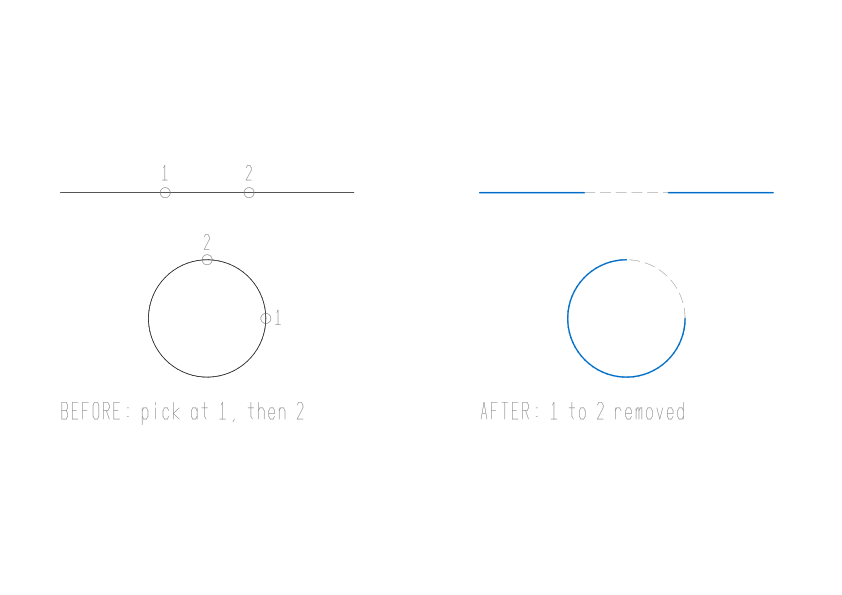
Use object snaps to break at exact points, such as the end or the middle of another object.
Options
Section titled “Options”| Option | What it does |
|---|---|
First point (F) | Use this when the click that selected the object was not where the gap should start. Musa CAD asks Specify first break point:, then Specify second break point:. |
@ at Specify second break point | Breaks at the first point with no gap, so the object is split in two where you clicked. Musa CAD says Split into 2 objects. |
Closed shapes
Section titled “Closed shapes”A circle, an ellipse and a closed polyline or spline have no ends, so which part goes depends on the order of the clicks.
- A circle loses the piece that runs counter-clockwise from the first point to the second, and becomes an arc. An ellipse works the same way. Swap the order of your clicks to keep the other part.
- A closed polyline or a closed spline opens up and becomes one open object.
Good to know
Section titled “Good to know”- Lines, arcs, circles, open and closed polylines, ellipses, elliptical arcs and splines can be broken.
- Construction lines and rays cannot be broken:
Break: a construction line cannot be broken.Other objects, such as text, sayBreak: that entity kind cannot be broken. - A second point past the end of a line or arc cuts that end off, leaving one piece.
- A break that would leave nothing at all is refused with
Break: that would remove the whole object -- use ERASE. - A circle needs two different points, so
@on a circle is refused withBreak: a circle needs two different break points. - The pieces keep the original’s layer, colour and linetype.
- The whole break is one undo step.
Compared with AutoCAD
Section titled “Compared with AutoCAD”BREAK keeps AutoCAD’s flow: the click that selects the object is also the first break point, so most breaks take just two clicks. As in AutoCAD, a circle loses the piece running counter-clockwise from the first point to the second.
- Split an object at one point in a single step with BREAKATPOINT.
- Cut objects back to an edge instead with TRIM.
- Join pieces back into one object with JOIN.