
JOIN
Join collinear or connected objects into a single object.
- Type
- JOIN or J
- On the ribbon
- Home › Modify (slide-out) › Join
- Since
- Musa CAD 0.1.0
What it asks first
Command: JOINSelect source object or multiple objects to join at once:Read from Musa CAD 0.8.0 itself (musacad --dump-wiki-data), so these facts always match the release this wiki is built for (0.8.0).
JOIN turns several objects into one. A chain of lines and arcs becomes a single polyline that moves, offsets and selects as one object. Two pieces of a broken line become one line again.
How it works
Section titled “How it works”The quickest way: select the objects first, then type J and press Enter. Musa CAD joins them at once.
Or type J and press Enter with nothing selected. Pick the source object, the one the result takes its layer and properties from. Then pick or window the objects to join to it, and press Enter.
Command: JSelect source object or multiple objects to join at once: (pick line 1)Select objects to join: (pick lines 2, 3 and 4)Select objects to join: Enter4 objects joined into a polyline.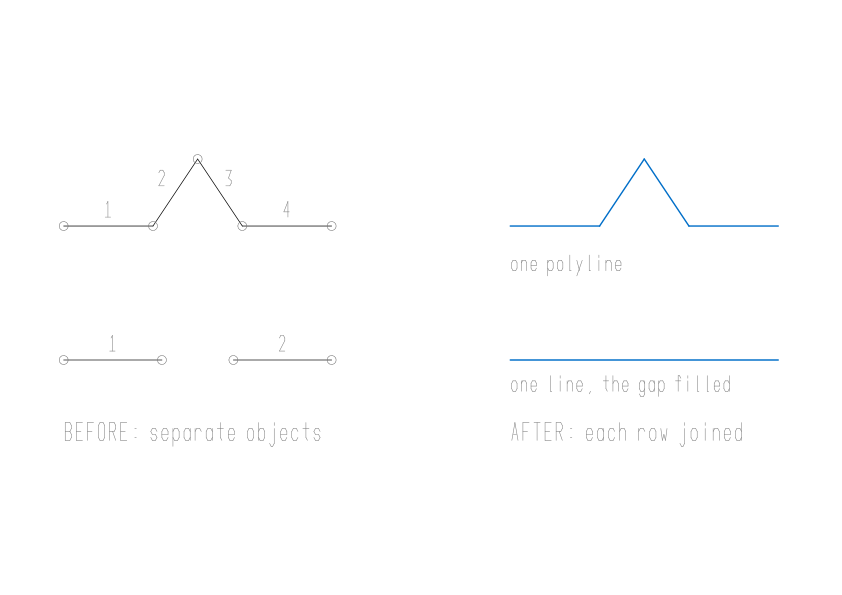
What JOIN makes
Section titled “What JOIN makes”What you get depends on what you join.
| You join | You get |
|---|---|
| Lines that all lie along one line | One line, from one far end to the other. Any gaps between them are filled. Musa CAD says, for example, Joined 2 lines into one line. |
| Arcs that all lie on one circle | One arc. The gaps between the arcs are filled, all but the largest one, which stays open. If they reach all the way round, a circle. |
| Elliptical arcs that all lie on one ellipse | One elliptical arc, filled in the same way, or a whole ellipse. |
| Splines of the same degree whose ends meet | One spline. |
| Lines, arcs and open polylines whose ends meet | One polyline. If the chain closes on itself, a closed polyline, and Musa CAD says 4 objects joined into a closed polyline. |
Options
Section titled “Options”| Option | What it does |
|---|---|
cLose (L) | Offered when the source is an arc or an elliptical arc: Select arcs to join to source or [cLose]:. Makes the source whole. Musa CAD says Arc converted to a circle. or Elliptical arc converted to an ellipse. |
| Enter at Select objects to join | Joins what is selected and ends the command. |
Good to know
Section titled “Good to know”- For a polyline, the ends must meet exactly. If none do, Musa CAD says
JOIN: the selected objects don't share endpoints.Use object snaps when you draw, or close small gaps with PEDIT Multiple, Join, which asks for a fuzz distance. - JOIN needs at least two objects it can join, or it says
JOIN: select at least two joinable objects (lines, arcs, open polylines). - Closed polylines have no free ends and are left as they are, as are objects JOIN cannot join, such as text.
- If the selection holds several separate chains, each becomes its own polyline, for example
Joined 6 objects into 2 polylines. - The new object takes the layer and properties of the source.
- The whole join is one undo step.
Compared with AutoCAD
Section titled “Compared with AutoCAD”As in AutoCAD, lines on one line become one line, arcs on one circle become one arc, and a chain of mixed pieces becomes a polyline. JOIN itself has no fuzz distance; PEDIT’s Multiple Join has one, as in AutoCAD.