
STRETCH
Move the parts of objects inside a crossing window, keeping the rest anchored.
- Type
- STRETCH or S
- On the ribbon
- Home › Modify › Stretch
- Since
- Musa CAD 0.3.0
What it asks first
Command: STRETCHSelect objects to stretch by crossing-window or crossing-polygon...Select objects:Read from Musa CAD 0.8.0 itself (musacad --dump-wiki-data), so these facts always match the release this wiki is built for (0.8.0).
STRETCH lengthens or shortens objects by moving only some of their points. Put a crossing window around the end you want to move, give a distance, and the lines connected to it stretch to follow.
How it works
Section titled “How it works”Type S and press Enter. Select with a crossing window: click an empty spot to the right of the part to move, then click to the left of it, so the box crosses the objects. Press Enter. Then give a base point and a second point, as in MOVE.
Command: SSelect objects to stretch by crossing-window or crossing-polygon...Select objects: (click right of the right end, then click left of it)2 found.Select objects: EnterSpecify base point or [Displacement] <Displacement>: (click a point)Specify second point or <use first point as displacement>: @20,0Stretched 2 objects.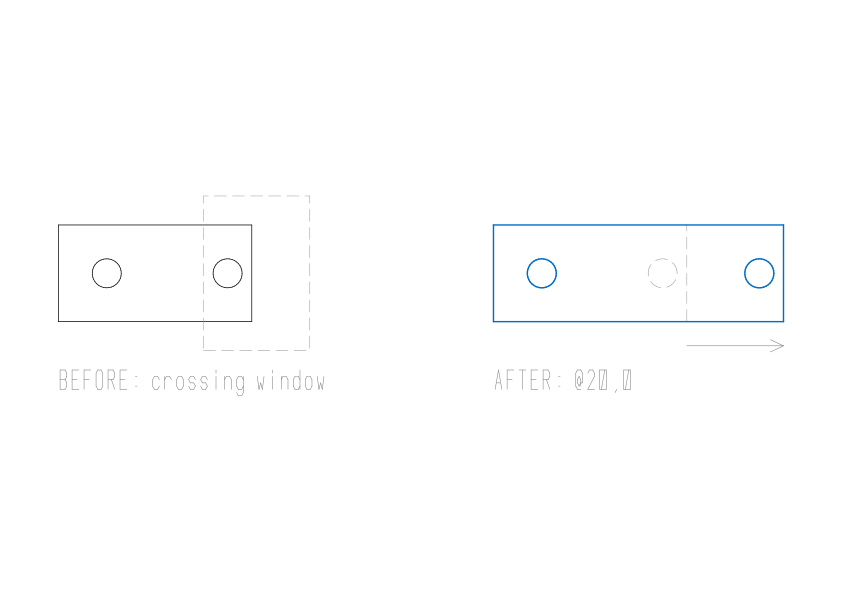
While you move the cursor to the second point, the objects stretch with it, so you can see the result before you click.
Options
Section titled “Options”| Option | What it does |
|---|---|
Displacement (D) | Asks Specify displacement <0.0000, 0.0000>:. Type how far to move the caught points as X,Y, such as 20,0. |
| Enter at Specify base point | Same as Displacement. |
| Enter at Specify second point | Uses the base point’s coordinates as the distance. A base point of 20,0 moves the points 20 to the right. |
| ALL at Select objects | Selects everything. Nothing was caught by a crossing window, so everything moves whole. |
What moves and what stays
Section titled “What moves and what stays”STRETCH decides, object by object, what to do:
- Crossed by a crossing window: only the points inside the window move. For a line, that is an end. For a polyline, the corners inside. The rest of the object stays where it is.
- Completely inside a window, or picked by clicking: the whole object moves.
- Passing through the window with no points inside, such as a long line running across it: it does not change.
- Circles, ellipses, text and blocks never change shape. They move whole if their centre or insertion point is inside the window, and stay put if it is not.
- Arcs: if one end is inside, that end moves and the arc keeps its height above the line between its ends, so it flattens or bulges as needed. If both ends are inside, the arc moves whole.
- Dimensions whose points move measure the new length.
Selecting objects
Section titled “Selecting objects”STRETCH has its own Select objects: step. Each pick or window adds to the set, and Musa CAD says how many it found, such as 2 found.
- Click an empty spot, then click again to the left to make a crossing window. This is the selection that stretches.
- A box made from left to right is a plain window. It takes only objects that lie completely inside, and those move whole.
- Click an object to add it whole.
- Press Enter, or right-click, when you are done.
At this prompt you can type ALL, or a point to pick at. Other keywords are not taken; Musa CAD answers Pick objects, drag a crossing window, type ALL, or press Enter to finish.
If you made a crossing window before starting STRETCH, the selection and the window are kept, and STRETCH goes straight to the base point.
Good to know
Section titled “Good to know”- Press and drag draws a lasso instead of a box. Objects caught by a lasso are selected, but they move whole rather than stretch. Use the two-click crossing window for stretching.
- Enter at
Select objects:with nothing selected saysNothing selected.and ends the command. - If no point of the selected objects lies inside a crossing window, Musa CAD says
Nothing to stretch: no vertex of the selection lies inside the crossing window. - Enter at Specify displacement means a distance of zero: Musa CAD says
Zero displacement: nothing to stretch.STRETCH does not remember the last distance. - When it is done, Musa CAD tells you how many objects it changed, such as
Stretched 2 objects. - One STRETCH is one undo step. Esc cancels, and nothing changes.
- Objects on layers that are off, frozen or locked cannot be selected.
Compared with AutoCAD
Section titled “Compared with AutoCAD”STRETCH follows AutoCAD’s prompts and its rule for what moves: crossed objects move only the points inside the crossing window, and enclosed or picked objects move whole.
- Move whole objects with MOVE.
- Change the length of a line or arc by a set amount with LENGTHEN.
- Read more about changing drawings in Modifying objects.