
CIRCLE
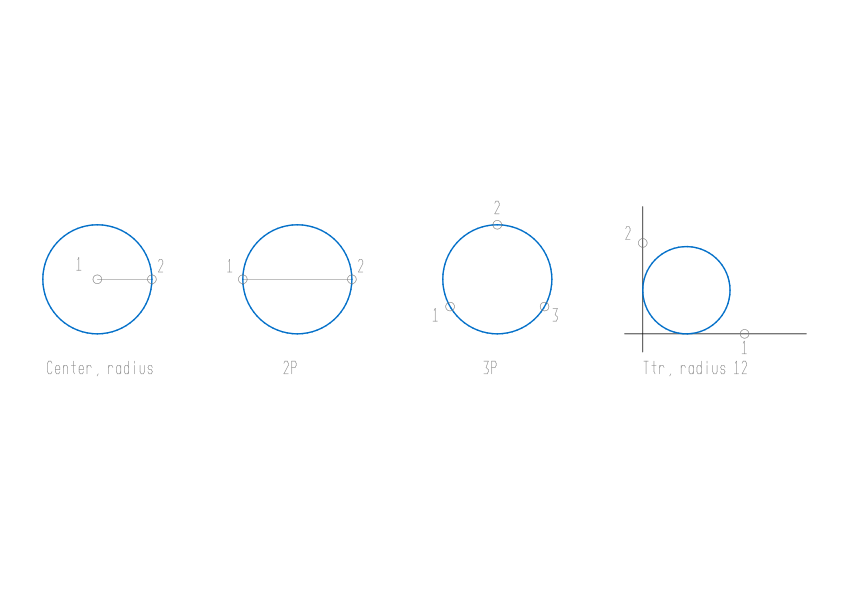
Draw a circle by centre and radius or diameter, two or three points, or tangent to objects.
- Type
- CIRCLE or C
- On the ribbon
- Home › Draw › Circle
- Home › Draw › Circle › Center, Radius
- Home › Draw › Circle › Center, Diameter
- Home › Draw › Circle › 2-Point
- Home › Draw › Circle › 3-Point
- Home › Draw › Circle › Tan, Tan, Radius
- Home › Draw › Circle › Tan, Tan, Tan
- Since
- Musa CAD 0.1.0
What it asks first
Command: CIRCLESpecify center point for circle or [3P/2P/Ttr (tan tan radius)]:Read from Musa CAD 0.8.0 itself (musacad --dump-wiki-data), so these facts always match the release this wiki is built for (0.8.0).
CIRCLE draws a circle. Most of the time you give the centre and the radius, but you can also draw a circle through points, or one that just touches other objects.
How it works
Section titled “How it works”Type C and press Enter. Click the centre, or type it. Then type the radius and press Enter, or click a point on the circle. Musa CAD draws the circle, tells you its radius, and the command ends.
Command: CSpecify center point for circle or [3P/2P/Ttr (tan tan radius)]: 50,50Specify radius of circle or [Diameter]: 20Circle: radius 20.0000Next time, Musa CAD offers the last radius as the default, shown in angle brackets: Specify radius of circle or [Diameter] <20.0000>:. Press Enter to use it again.
With Dynamic Input on, a box for the radius appears beside the circle as you move the cursor. Type the radius there and press Enter.
Options
Section titled “Options”| Option | What it does |
|---|---|
Diameter (D) | At the radius prompt, give the diameter instead. Musa CAD asks Specify diameter of circle:, with twice the last radius as the default. If you click a point, its distance from the centre is the diameter. |
3P (3P) | Draws the circle through three points. Musa CAD asks Specify first point on circle:, then the second and third points. |
2P (2P) | Draws the circle from the two ends of a diameter: Specify first end point of circle's diameter:, then the second end. |
Ttr (T) | Tan, tan, radius. Click two objects the circle should touch, then give the radius. See below. |
| Enter at the radius prompt | Uses the default, the radius of the last circle you drew. |
Circles that touch other objects
Section titled “Circles that touch other objects”A circle that just touches an object is called tangent to it. With Ttr, you click the two objects and then give the radius:
Command: CSpecify center point for circle or [3P/2P/Ttr (tan tan radius)]: TSpecify point on object for first tangent of circle: (click the first object)Specify point on object for second tangent of circle: (click the second object)Specify radius of circle <20.0000>: 12Circle: radius 12.000000The objects can be lines, circles, arcs, construction lines or polyline segments. Usually more than one circle fits, so click each object near where you want the circle to touch it. Musa CAD draws the one nearest your clicks.
The Circle list on the ribbon also has Tan, Tan, Tan: click three objects, and Musa CAD draws the circle that touches all three. Typing TTT at the first prompt does the same.
Good to know
Section titled “Good to know”- The last radius stays as the default for the next circle until you close Musa CAD.
- A radius of 0 or less is refused with
Value must be positive and nonzero. - Pressing Enter at the radius prompt before you have drawn any circle says
Requires numeric distance or second point. - 3P with three points in a straight line, or 2P with the same point twice, says
Circle does not exist. - For Ttr and Tan, Tan, Tan: if no circle can touch the objects, Musa CAD says
Circle does not exist.A click with no object under it saysNo object at the pick point. Circle does not exist.Any other kind of object saysThe object must be a line, circle, arc, construction line or polyline. Circle does not exist. - Esc cancels the command. Nothing is drawn.
Compared with AutoCAD
Section titled “Compared with AutoCAD”CIRCLE has AutoCAD’s methods: centre with a radius or diameter, 3P, 2P, Ttr, and Tan, Tan, Tan from the ribbon. The last radius becomes the next default, as in AutoCAD, but in Musa CAD it is not a system variable you can set.
- Draw part of a circle with ARC.
- Draw an oval with ELLIPSE.
- Snap to centres, tangents and quadrants in Precision and drafting aids.