
ARC
Draw an arc by three points, or from a start, centre or end with an angle, chord, direction or radius.
- Type
- ARC or A
- On the ribbon
- Home › Draw › Arc
- Home › Draw › Arc › 3-Point
- Home › Draw › Arc › Start, Center, End
- Home › Draw › Arc › Start, Center, Angle
- Home › Draw › Arc › Start, Center, Length
- Home › Draw › Arc › Start, End, Angle
- Home › Draw › Arc › Start, End, Direction
- Home › Draw › Arc › Start, End, Radius
- Home › Draw › Arc › Center, Start, End
- Home › Draw › Arc › Center, Start, Angle
- Home › Draw › Arc › Center, Start, Length
- Home › Draw › Arc › Continue
- Since
- Musa CAD 0.1.0
What it asks first
Command: ARCSpecify start point of arc or [Center]:Read from Musa CAD 0.8.0 itself (musacad --dump-wiki-data), so these facts always match the release this wiki is built for (0.8.0).
ARC draws an arc, which is part of a circle. The quickest way is to give three points on it: where it starts, a point it passes through, and where it ends.
How it works
Section titled “How it works”Type A and press Enter. Give the start point, a second point on the arc, and the end point. Musa CAD draws the arc through all three and the command ends.
Command: ASpecify start point of arc or [Center]: 0,0Specify second point of arc or [Center/End]: 30,20Specify end point of arc: 60,0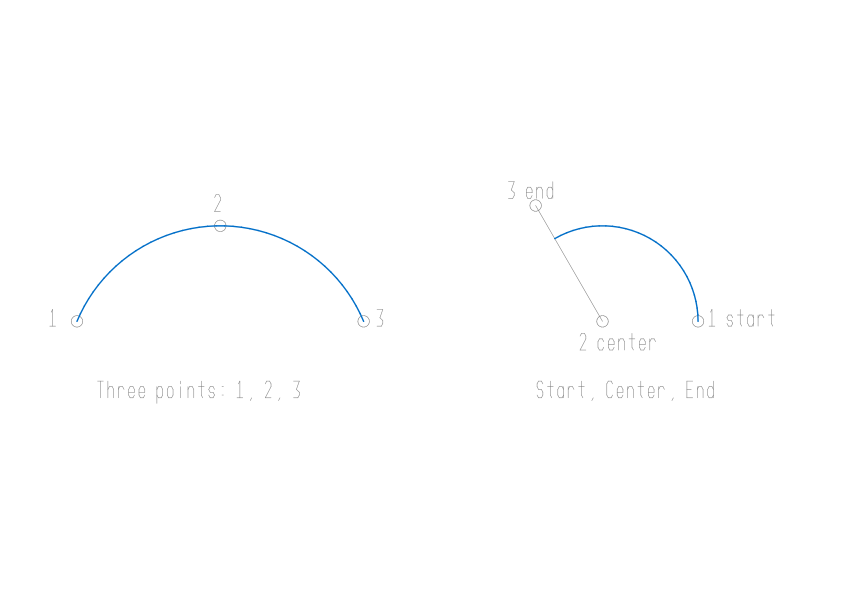
If the three points lie in a straight line, no arc passes through them. Musa CAD says *Invalid* and asks for the end point again.
Options
Section titled “Options”Besides three points, you can build an arc from its start, its centre and its end, and finish it with an angle, a chord length, a direction or a radius. The Arc list on the ribbon starts each of these ways for you, such as Start, Center, End or Start, End, Radius.
| Option | What it does |
|---|---|
Center (C) | At the first prompt, give the centre first: Specify center point of arc:, then Specify start point of arc:. At the second prompt, give the centre after the start point. Either way, Musa CAD then asks Specify end point of arc (hold Ctrl to switch direction) or [Angle/chord Length]:. |
End (E) | At the second prompt, give the end point next. Musa CAD then asks Specify center point of arc (hold Ctrl to switch direction) or [Angle/Direction/Radius]:. |
Angle (A) | After the centre or the end: the included angle, which is how far the arc sweeps, in degrees. A positive angle goes counter-clockwise, a negative one clockwise. |
chord Length (L) | After the centre: the straight distance from the start to the end. A positive length draws the shorter arc, a negative one the longer arc. |
Direction (D) | After the end: the direction the arc leaves the start point in. Type an angle, or click a point to aim it. |
Radius (R) | After the end: the radius. A positive radius draws the shorter arc, a negative one the longer arc. |
| Enter at Specify start point of arc | Continues from the end of the last line or arc you drew, carrying on smoothly in its direction. Musa CAD asks only Specify end point of arc (hold Ctrl to switch direction):. |
Start, centre and end
Section titled “Start, centre and end”With a centre, the start point sets the radius. The end point you give only says where the arc stops: the arc ends where the line from the centre through that point crosses it.
Command: ASpecify start point of arc or [Center]: 130,0Specify second point of arc or [Center/End]: CSpecify center point of arc: 110,0Specify end point of arc (hold Ctrl to switch direction) or [Angle/chord Length]: @28<120Here @28<120 is a point 28 from the centre at 120 degrees, so the arc sweeps 120 degrees.
Which way the arc goes
Section titled “Which way the arc goes”Arcs run counter-clockwise from the start point, unless you say otherwise. Where a prompt says (hold Ctrl to switch direction), hold Ctrl as you click to draw the arc clockwise instead. While you move the cursor, the rubber band shows the arc the click will make.
A three-point arc always goes from the first point, through the second, to the third, whichever way round that is.
Good to know
Section titled “Good to know”*Invalid*means no arc fits what you gave: three points in a line, a chord longer than the circle is wide, or a radius shorter than half the distance from start to end. Musa CAD stays at the same prompt, so try another value.- Direction and Continue already fix which way the arc leaves, so holding Ctrl changes nothing there, even though the prompt mentions it.
- Pressing Enter at the first prompt when you have not drawn a line or arc yet does nothing. The prompt stays.
- Each arc is a separate object. To draw lines and arcs as one object, use the arc mode of PLINE.
- Esc cancels the command. Nothing is drawn.
Compared with AutoCAD
Section titled “Compared with AutoCAD”ARC offers AutoCAD’s methods: three points, the Center and End branches, the centre first, and Continue with Enter. The Arc list on the ribbon starts each of its eleven ways.