
SPLINE
Draw a spline through fit points or by control vertices.
- Type
- SPLINE or SPL
- On the ribbon
- Home › Draw (slide-out) › Spline
- Home › Draw (slide-out) › Spline › Spline Fit
- Home › Draw (slide-out) › Spline › Spline CV
- Since
- Musa CAD 0.4.0
What it asks first
Command: SPLINECurrent settings: Method=Fit Knots=ChordSpecify first point or [Method/Knots/Object]:Read from Musa CAD 0.8.0 itself (musacad --dump-wiki-data), so these facts always match the release this wiki is built for (0.8.0).
SPLINE draws a smooth, free-form curve. Use it for shapes that are not made of lines and arcs, such as a contour line or a curved edge.
How it works
Section titled “How it works”Type SPL and press Enter. Musa CAD shows the current settings, then asks for points. Click the points the curve should pass through. Press Enter to finish.
Command: SPLCurrent settings: Method=Fit Knots=ChordSpecify first point or [Method/Knots/Object]: 0,0Enter next point or [start Tangency/toLerance]: 20,25Enter next point or [end Tangency/toLerance/Undo]: 40,5Enter next point or [end Tangency/toLerance/Undo/Close]: 60,30Enter next point or [end Tangency/toLerance/Undo/Close]: 80,10Enter next point or [end Tangency/toLerance/Undo/Close]: Enter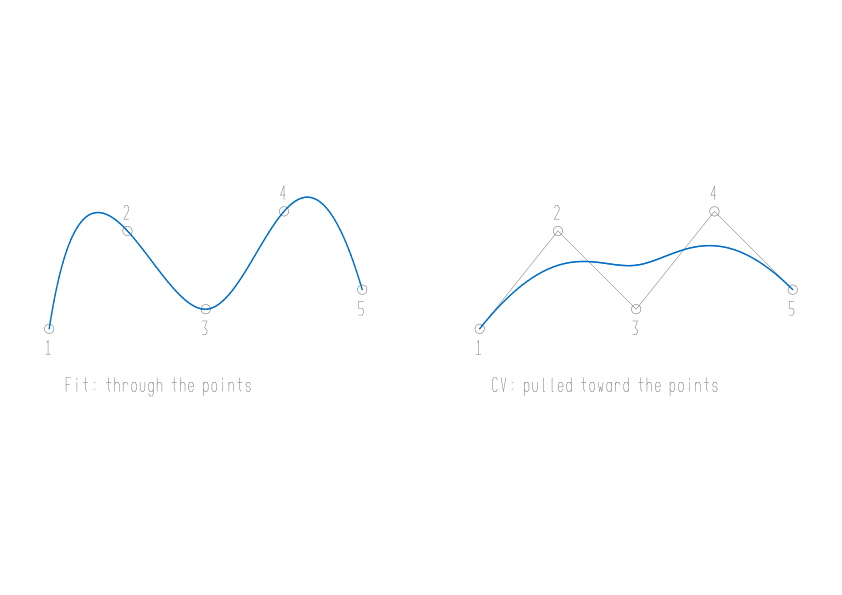
Fit and CV
Section titled “Fit and CV”SPLINE has two methods. Switch between them with Method. Musa CAD keeps your choice for next time.
- Fit (the default): the curve passes through every point you give.
- CV: the points are control vertices. They make a frame that pulls the curve toward it. The curve touches only the first and the last point.
With CV, the prompts change. SPLINE starts with Current settings: Method=CV Degree=3 and Specify first point or [Method/Degree/Object]:, then asks Enter next point:, Enter next point or [Undo]: and Enter next point or [Close/Undo]:.
Options
Section titled “Options”| Option | What it does |
|---|---|
Method (M) | Enter spline creation method [Fit/CV] <Fit>:. Choose Fit or CV. |
Knots (K) | Fit only. Enter knot parameterization [Chord/Square root/Uniform] <Chord>:. Sets how the curve is spread between your points. The three choices give slightly different shapes when the points are unevenly spaced. |
Degree (D) | CV only. Enter degree of spline <3>:, a whole number from 1 to 10. Degree 1 joins the points with straight lines; the default, 3, gives a smooth curve. |
Object (O) | Asks Select spline-fit polylines:. Each polyline you select becomes a spline. A polyline smoothed with the Spline option of PEDIT keeps exactly the same curve. Any other polyline becomes a spline through its vertices. |
start Tangency (T) | Fit, before the second point. Specify start tangent:. Click a point, and the curve leaves the first point heading toward it. Press Enter to leave the start free. |
end Tangency (T) | Fit, from the second point on. Specify end tangent:. Click a point, and the curve ends heading toward it. This also finishes the spline. |
toLerance (L) | Fit only. Specify fit tolerance <0.0000>:. With 0 the curve passes through every point. A larger value lets it pass within that distance of the points, which can make it smoother. |
Undo (U) | Removes the last point. |
Close (C) | Joins the curve back to the first point and finishes. With Fit, the curve runs smoothly through the join. You need at least three points. |
| Enter | Finishes the spline. |
Good to know
Section titled “Good to know”- Esc throws away the spline you are drawing. Press Enter to keep it.
- A spline needs at least two points. Pressing Enter after one says
A spline needs at least two points.and nothing is drawn. - Close with fewer than three points says
Close needs at least three points. - The method, knots and degree are kept until you close Musa CAD. The tolerance starts at 0 every time.
- A tolerance has no effect on a closed spline, or on one with a start or end tangent.
- With fewer points than the degree plus one, the degree is lowered to fit. Two points give a straight line.
- A tangent point on top of the end point is refused with
The tangent needs a point away from the spline's end. - A Fit spline keeps its fit points. Its grips sit on them, and dragging one fits the curve again.
Compared with AutoCAD
Section titled “Compared with AutoCAD”SPLINE uses AutoCAD’s prompts for its Fit and CV methods, with the same options: Knots, Degree, Object, start and end Tangency, toLerance, Undo and Close.